Put your main mesh router in an open, central spot where its internet cable can reach. Place a wireless satellite partway toward the room that needs help, while it still has a strong mesh connection. Then test both the node-to-node link and WiFi performance where you actually sit.
You have installed a mesh kit, yet the spare bedroom still buffers and calls from the home office still drop. Before adding another node, check where the ones you already own are sitting.
A convenient power socket is a starting point. The final position should earn its place by improving the rooms you use without leaving the satellite struggling to reach the rest of the network. This guide helps you choose candidates, compare them and keep the layout that works.
Still deciding which hardware to buy? Start with our mesh WiFi, extender and powerline comparison. Here, we focus on placing a mesh system you already have.
Every wireless node has two jobs
A satellite connects your phone or laptop to WiFi, and also carries traffic back toward the main router. That second connection is called backhaul. A strong signal beside a satellite does not prove its backhaul is healthy.
Your device → the node
Can the laptop at your desk maintain a useful connection to the WiFi access point?
The node → the network
Can that satellite reliably carry your traffic toward the gateway?
For wireless placement, check the mesh app as well as your device. eero’s connection-strength documentation explicitly distinguishes the inter-node connection from the connections of personal devices. The same distinction is useful when diagnosing other mesh brands.
Where to place nodes, room by room
The locations below are candidates to test, rather than guaranteed positions. Keep the unit’s intended orientation and ventilation clear, and follow its model-specific installation instructions.
Living room: start with the gateway
The gateway connects to your modem or internet equipment. Choose an exposed shelf or table instead of the floor behind the television. If the cable permits, try a location closer to the rooms you need to serve. Check our router placement guide before committing to extra satellites.
Try two practical positions: the current media area with the router moved into the open, and a more central shelf reachable by Ethernet. Keep the other nodes in place while comparing them, so you can see what the gateway move changed.
Hallway: a useful bridge between rooms
A hallway can be a good candidate when it offers a less obstructed route between the gateway and a weak bedroom or office. Look for a stable surface near a doorway, away from metal storage. Test with doors in the positions you normally use; an unusually open house can hide the everyday problem.
Bedroom: test the position where you use WiFi
If the bedroom is weak, compare a satellite just outside the room with one on an exposed bedside shelf. At each location, check its mesh connection, then test from the bed or reading chair. Keep the position that improves the actual use spot while maintaining a healthy backhaul.
Do not treat a strong reading right next to the new satellite as the result. The useful comparison is at the same device position before and after the move.
Home office: use the desk as your acceptance test
Try a position on the route from the gateway to the office before putting a satellite in the far corner behind the desk. Make a call from your normal seat and repeat the same download or transfer test. If the mesh app reports a weak link, move the satellite back toward its upstream node.
Where your hardware supports Ethernet backhaul, a wired satellite in or near the office may offer more placement freedom. Wiring a computer into a wireless satellite still leaves the satellite’s wireless backhaul in the path.
Upstairs landing: compare the route through the house
In a two-storey home, test an upstairs landing near the stairwell alongside the bedroom location you first considered. The landing may offer a better path than a direct route through a dense floor, but construction decides the outcome. Survey each floor separately and check upstairs from your normal working or sleeping position.
If neither position gives a satisfactory mesh link, consider a supported wired connection between floors. Our upstairs WiFi guide covers the wider troubleshooting process.
Kitchen: cover it from a clear nearby position
Compare a spot outside the kitchen doorway with an open position inside it. Avoid placing the unit behind the refrigerator or next to a microwave. Keep it clear of cooking heat, splashes and crowded worktops. The best outlet is one where the unit can operate safely and the network performs consistently.
Basement or detached office: know when placement runs out
Test near the stair opening for a basement before choosing a distant corner. For a detached office, check the connection with the doors closed and from the desk inside the building. If every usable indoor position has a weak mesh link, treat a wired connection or a suitable dedicated link as a separate installation project.
Do not move an indoor-only node into the garden to bridge the gap. See our garage and garden-office coverage guide for the options.
A simple floor-plan example
Imagine a gateway in the living room and an office at the opposite end of a flat. Your first candidate might be the office itself. A second candidate is the hall on the way there. Compare both: if the office node has a weak mesh connection, the hall may deliver a better overall result even though it is farther from the laptop.
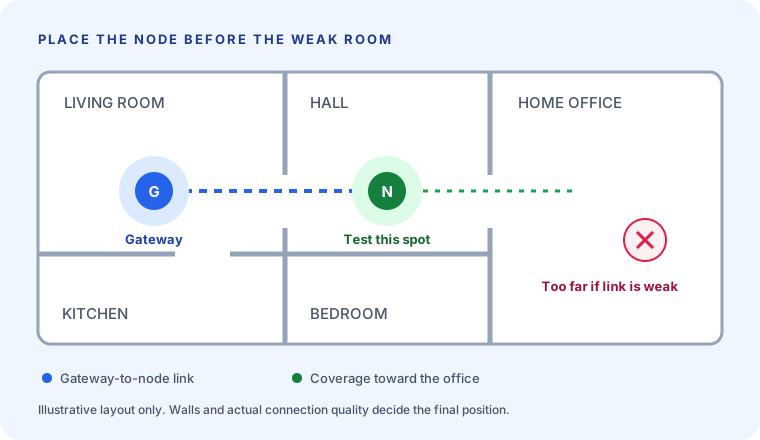
Mark the desk, sofa and bedrooms on your own floor plan. Pick a small number of plausible outlets between those spots and the gateway. This turns the task into a comparison you can repeat instead of a sequence of random moves.
How far apart should mesh nodes be?
There is no distance that works in every home. Google suggests starting its points partway toward the area needing coverage and within roughly two rooms of the router or another point. eero suggests about 20–30 feet (6–9 metres), with 50 feet (15 metres) as its upper placement guideline. These are brand-specific starting points, not universal range promises. Google placement guidance; eero placement guidance.
A room count or tape measure cannot describe the route through your walls. Start with your manufacturer’s guidance and let its mesh test decide whether your candidate location is too far away.
What changes with Ethernet backhaul?
With supported Ethernet backhaul, a cable carries the connection between nodes. You can choose the satellite’s location around room coverage without requiring a strong wireless link back to the gateway. TP-Link recommends this option where cabling is available. TP-Link Deco placement guide.
Check the manual for your exact model and its supported wiring topology before connecting switches or satellites. After installation, confirm the app shows the intended wired connection. A cable plugged into a node is useful evidence only when it is connected and configured to do the job you intended.
A repeatable placement test
- Record the starting layout. Mark the gateway, satellites and important use spots. Note which connection problem you are trying to fix.
- Capture a baseline. Use HeatFi’s floor-plan workflow to record the coverage information available on your device. Also test a call or download at the problem spot.
- Move one satellite. Choose one candidate outlet and let the mesh app confirm the node has rejoined before measuring.
- Check the mesh link. Run the manufacturer’s mesh test or inspect the satellite’s connection quality. TP-Link’s Deco guide describes checking the satellite’s signal from its source unit in the app.
- Repeat at the same spots. Use the same device, similar network activity and the same door positions. Repeat the task that failed, not just a speed test beside the node.
- Compare and keep the better layout. Confirm that the weak room improves and the other important rooms still work. Save the winning positions on your plan.
Use this small log to avoid forgetting which arrangement you tested. The blanks are for your results; no performance numbers are implied.
| Candidate | Mesh app result | Test at use spot | Keep? |
|---|---|---|---|
| Current position | Record status | Call / download / coverage | Baseline |
| Hallway shelf | Record status | Repeat the same tests | Yes / no |
| Inside weak room | Record status | Repeat the same tests | Yes / no |
Five placement mistakes to avoid
- Putting a wireless node deep in a dead zone. Start closer to the existing network and check its backhaul.
- Hiding it in a cabinet. Choose an open position and keep ventilation clear.
- Adding nodes before testing the current ones. Compare placement first. TP-Link notes that additional Deco units are not always beneficial when coverage is already adequate. Deco unit-count guidance.
- Moving everything at once. Change one location so the improvement has an identifiable cause.
- Testing only beside the satellite. The room’s useful coverage matters more than the reading at its power socket.
Common questions
Should every room have a mesh node?
Start with the nodes needed to cover your actual use spots. Keep an additional unit only if testing shows it solves a remaining problem. A room-by-room survey is a way to check the layout, not a requirement to install a node in every room.
Can I put the satellite next to the main router?
That is useful during setup, but it may do little for a distant weak room. After setup, test a candidate farther along the route to that room while checking that the mesh link stays healthy.
Why are the WiFi bars strong but the connection slow?
Your device may have a strong connection to a satellite whose backhaul is weak. Check the mesh app, then repeat the same test near the gateway. If both locations are slow, investigate the wider connection rather than assuming node placement is the cause.
Can HeatFi tell me the quality of my mesh backhaul?
Use HeatFi to organize room coverage measurements and compare layouts. Use your mesh manufacturer’s app for the satellite-to-network connection. A coverage map alone cannot verify backhaul quality.
Map the rooms that matter
Create a floor plan in HeatFi, record a baseline and compare coverage after moving a node. Pair your survey with the mesh app’s connection test.
Sources & research notes
Manufacturer documentation checked on 7 October 2026. The room examples and testing workflow above are practical suggestions to validate in your own home; the diagram is illustrative.